
Customers and teams increasingly ask an AI assistant to answer questions about their CRM: which deals are stuck, who has not been contacted, what changed this week. Making that work means giving the agent a way to call the Bitrix24 REST API. The quick route is to paste an inbound webhook into the agent's configuration. That puts a credential with real write and delete power into a system that follows instructions it finds in text.
This guide shows a safer pattern: a dedicated endpoint for the agent that can read what it needs, at a pace Bitrix24 accepts, for a limited time, and nothing more.
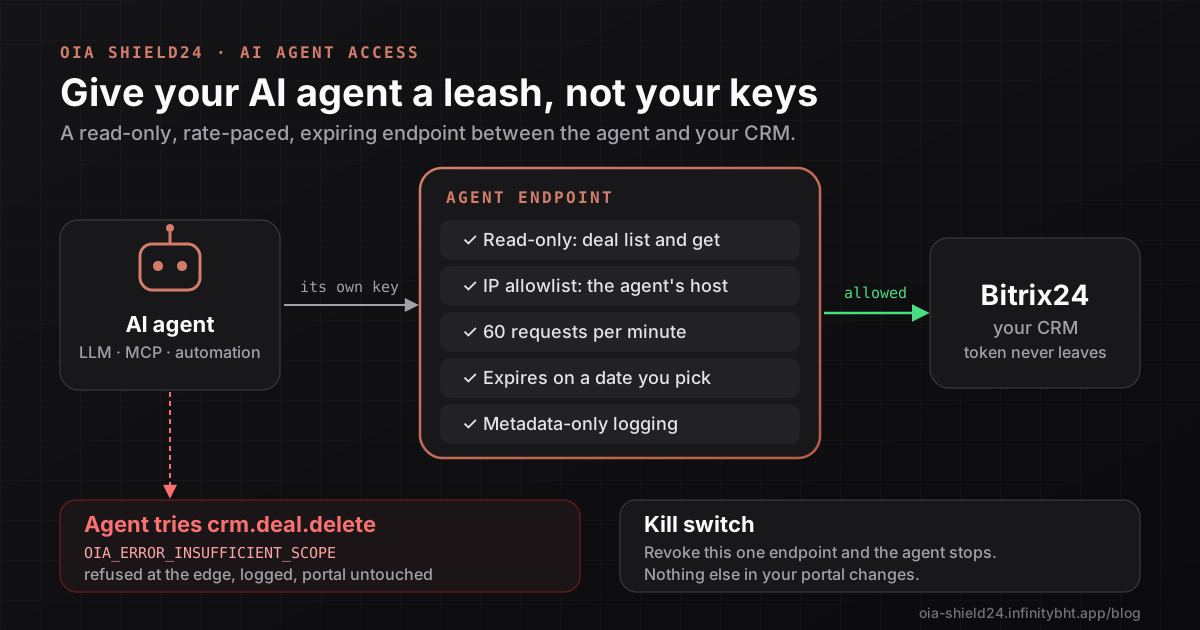
Short answer: Do not give an AI agent your webhook or an administrator token. Create an OIA Shield24 endpoint just for the agent, running as a low-privilege Bitrix24 user, limited to read-only methods, restricted by IP, rate-limited, set to expire, and logged by metadata only. If the agent misbehaves or is tricked, the damage is capped and you can revoke the endpoint in one click.
Why agents need a different kind of access
An AI agent is not a normal integration. Three things make it riskier and more demanding than a script:
- It follows instructions it reads. Text in a CRM field, an email or a web page can tell an agent to do something the user never intended, a risk usually called prompt injection. You cannot rely on the agent always refusing. What you can rely on is a credential that physically cannot delete records.
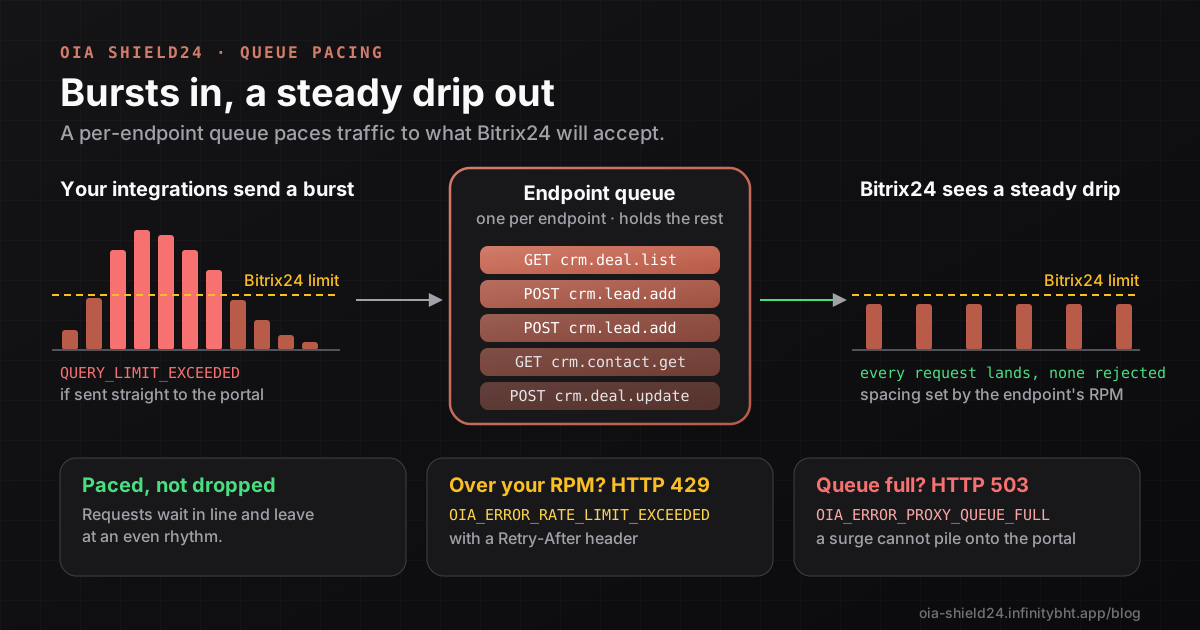
- It works in bursts. To answer one question an agent may call the API five or six times in a row. A burst like that can push a portal over its request limit and stall the agent.
- It can loop. A confused agent can repeat a call hundreds of times. Without a rate limit and a log, you find out when the portal slows down.
The solution is to treat the endpoint's permissions as the last line of defence, not the agent's good behaviour.
What the agent endpoint should look like
| Control | Recommended setting | What it protects against |
|---|---|---|
| Vendor type | External Platform (AI, Zapier) | Applies sensible presets for automation |
| Mode | API Key | The agent sends an Authorization header and never sees a URL with a secret inside |
| Run As User | A dedicated Bitrix24 user for the agent | The agent can only see records that user can see |
| Allowed Operations | READ only | Prompt injection cannot delete or edit data |
| Method filtering | crm., crm., and similar | The agent cannot reach unrelated parts of the portal |
| IP allow list | The agent's server addresses | A leaked key is useless elsewhere |
| Rate limit | 60 requests per minute to start | Loops and bursts cannot overload the portal |
| Expiry | 30 days | Forgotten agents lose access by themselves |
| Logging | Metadata only | You see what was called without storing CRM content |
Step by step: connect your agent
- Decide what the agent may do. Write the questions it should answer and the Bitrix24 methods that need. Start with read-only. Writing can come later, as a separate endpoint.
- Create a dedicated Bitrix24 user. Make a user such as "AI assistant" with only the CRM permissions you are happy to expose. Open OIA Shield24 once as that user so the app can verify their authorization.
- Create the endpoint. In OIA Shield24 open Access Control and choose New Vendor. Name it clearly, for example
Sales assistant (read-only). Choose the vendor type External Platform (AI, Zapier) and the mode API Key. The Templates menu includes presets such as listing deals or contacts that you can start from. - Set Run As User. As an administrator, choose the dedicated user. The agent now inherits that user's permission boundaries on top of the endpoint's own limits.
- Restrict the methods. Switch on the READ operation only, then use Advanced Method Filtering to include just the methods the agent needs.
- Add the guardrails. Add an IP allow list if the agent runs from fixed addresses (a Developer plan feature), set the expiry to 30 days, enter 60 for requests per minute, and choose Metadata only for logging.
- Wire the key into the agent's tool. Store the key as a secret, never in the prompt. A tool function the agent can call looks like this:
export async function listDeals({ stageId, limit = 20 }) {
  const res = await fetch('https://oia-shield24.infinitybht.app/rest/crm.deal.list', {
    method: 'POST',
    headers: {
      Authorization: `Bearer ${process.env.SHIELD24_ENDPOINT_KEY}`,
      'Content-Type': 'application/json',
    },
    body: JSON.stringify({
      filter: { STAGE_ID: stageId },
      select: ['ID', 'TITLE', 'STAGE_ID', 'OPPORTUNITY'],
    }),
  });
  if (!res.ok) throw new Error(`Bitrix24 gateway error ${res.status}`);
  return (await res.json()).result.slice(0, limit);
}
Always pass a select list so the agent receives only the fields it needs. This also keeps tokens, and cost, down.
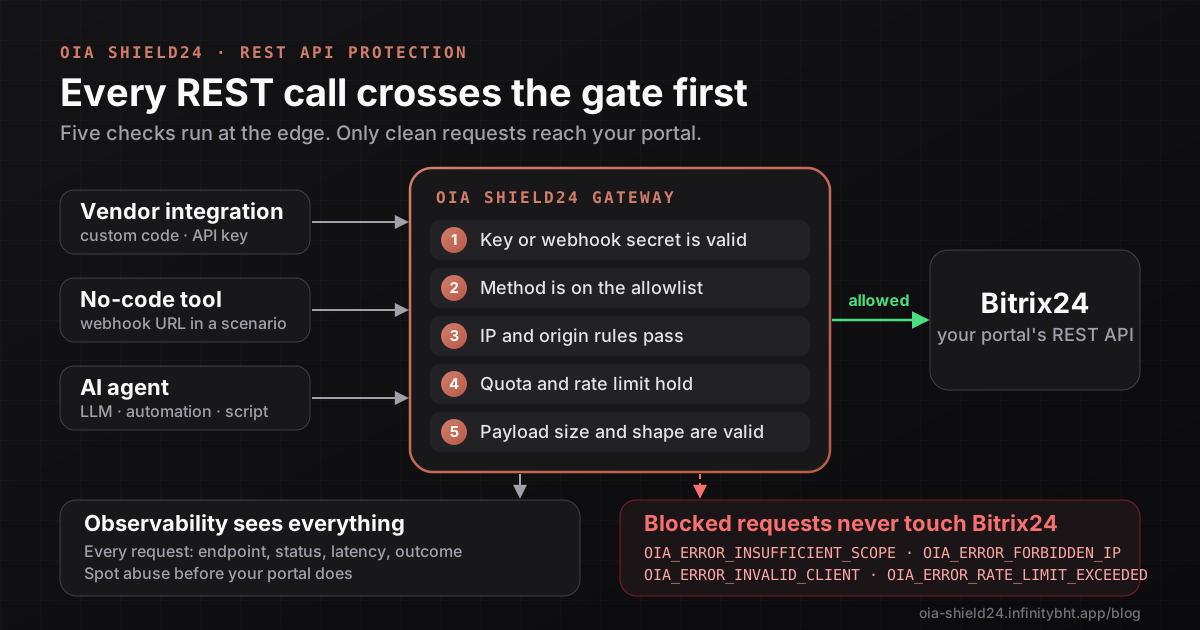
- Test the guardrails. Ask the agent a normal question and confirm it works. Then call a method outside the allowlist yourself, for example
crm., and confirm it is refused withdeal. delete OIA_. Finally open Observability and check that both calls appear.ERROR_ INSUFFICIENT_ SCOPE
Keep the agent inside Bitrix24's limits
Agents are bursty, which is where the endpoint's queue helps. Requests above the pace you set wait in line instead of failing, and the agent simply receives its answers a little later. If the agent sends more than its per-minute limit, it gets HTTP 429 with a Retry-After header, and a well-written tool should wait and try again. The details are in how queue pacing stops Bitrix24 rate-limit errors.
Run it safely over time
- Review the log weekly. Look for methods the agent calls that you did not expect, rising error counts, and calls at odd hours.
- Use full logging only briefly. Switch to full logging while onboarding a new agent so you can debug malformed requests, then go back to metadata only.
- Renew deliberately. When the 30 days end, decide whether the agent is still needed instead of extending by default.
- Add write access separately. If the agent must create notes or tasks, create a second endpoint that allows only those methods, and force values such as the responsible user with Payload Forcing. See how to onboard external integrations safely.
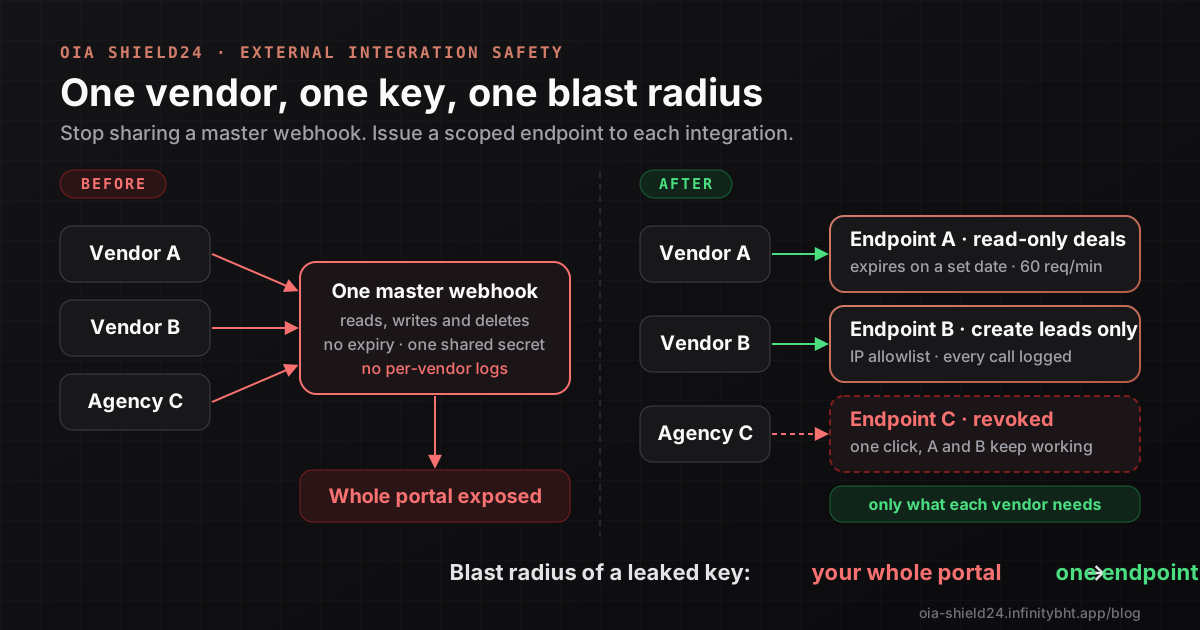
- Keep the kill switch in mind. Revoking the endpoint stops that agent immediately and changes nothing else.
Frequently asked questions
Does this work with MCP servers and agent frameworks?
Yes, as long as the tool can call the Bitrix24 REST API with a custom base URL and an Authorization: Bearer header. Point it at the OIA Shield24 URL instead of your portal. The method names and responses are the same as in the Bitrix24 REST API.
Can an AI agent still do damage with read-only access?
It can read data you have exposed, so choose the methods and the Run As User with care. It cannot change or delete anything, and the log shows exactly what it read. If some data must never leave Bitrix24, keep it out of the permissions of the agent's user.
Does OIA Shield24 see my agent's prompts or the CRM data it reads?
The gateway forwards requests to Bitrix24 and does not store request or response bodies at the Metadata only log level. Prompts never reach it, because it only sees the REST calls your agent makes. Read the privacy policy for the full details.
What happens when the agent exceeds its rate limit?
It receives an HTTP 429 response with a Retry-After header. Nothing breaks on the Bitrix24 side, and your tool can wait and retry.
Which plan do I need?
A read-only, rate-limited endpoint with expiry and logging is available on every plan, including the Free plan. IP allow lists need the Developer plan or higher. See pricing.
Let your AI agent use Bitrix24 without the risk
Install OIA Shield24, create a read-only endpoint for your agent in minutes, and see every call it makes in Observability. The Free plan costs nothing.