
Sooner or later someone outside your company asks for access to Bitrix24. A marketing agency wants to push leads in. A developer wants to build a report. A SaaS product wants to sync deals. The usual reply is "create a webhook and send us the URL", and that single message hands over more than most teams realise.
This guide is a practical process for letting vendors work with your portal while keeping control: what to decide before you grant access, how to set it up in OIA Shield24, and how to end it cleanly.
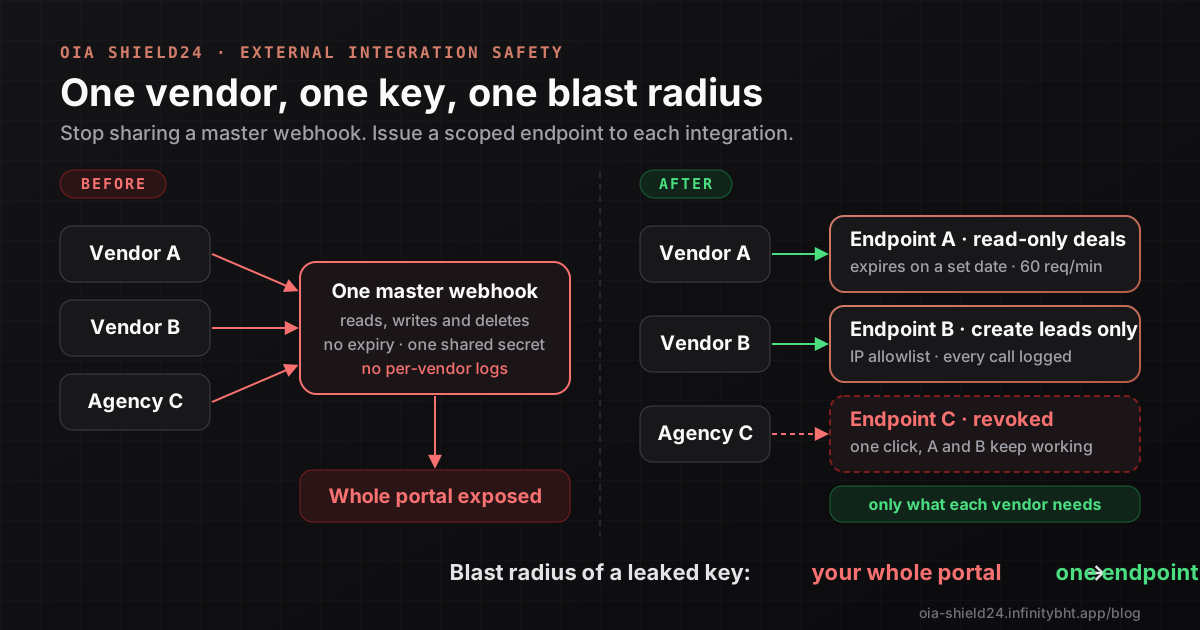
Short answer: Never share one master webhook. Create a separate OIA Shield24 endpoint for each vendor, limited to the methods they need, run as a user with the right permissions, restricted to their IP addresses, and set to expire when the contract does. When the work ends, revoke that endpoint and nothing else is affected.
The problem with "just send us a webhook"
An inbound Bitrix24 webhook has three properties that make it a poor way to share access:
- It carries the creator's rights. If an administrator made it, the vendor now acts as an administrator within the ticked scopes.
- It is all-or-nothing by scope. You can choose a scope such as
crm, but not "list deals only, between 9 and 17, from this server". - It is shared and silent. If the same URL goes to three vendors, you cannot tell their traffic apart, and revoking it breaks all three.
The fix is not to trust vendors less. It is to give each one a credential that can only do their job, can be cut off alone, and leaves a trail.
The five-question access review
Before you create anything, answer these for every vendor. They map one-to-one to settings in OIA Shield24.
| Question | Setting in the New Vendor form | Effect |
|---|---|---|
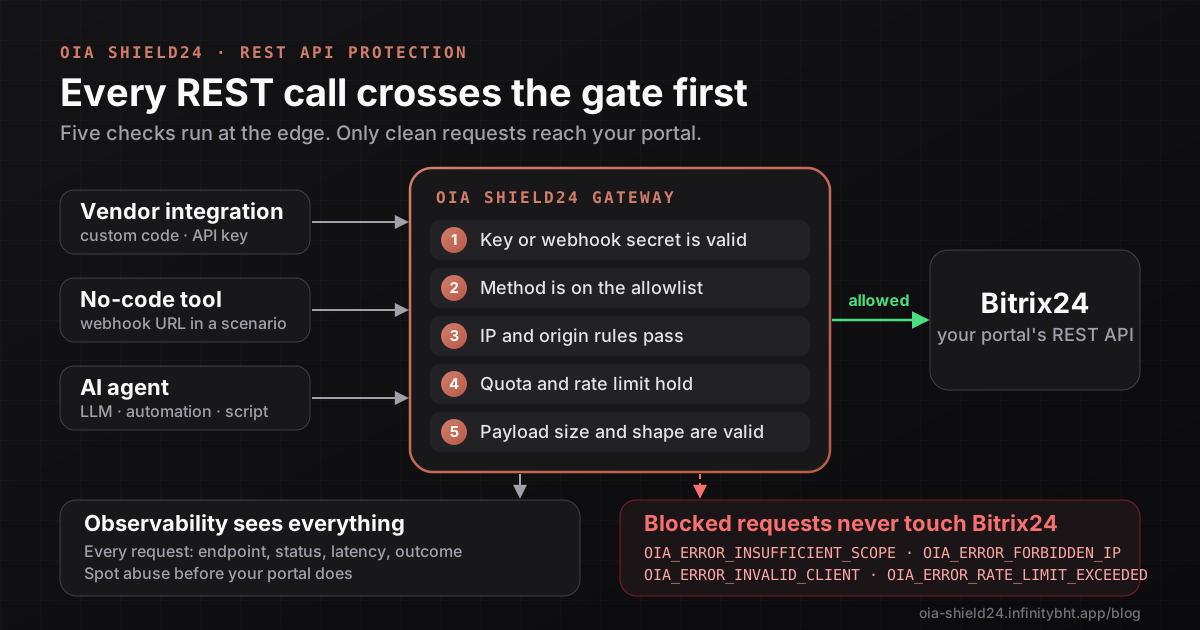
| What must they do? | Allowed Scopes, Allowed Operations, Methods Rule | Only listed methods work; everything else is refused |
| Whose permissions should they have? | Run As User | The vendor sees only what that Bitrix24 user can see |
| Where will they call from? | IP allow list, allowed origins | Calls from other networks are refused |
| For how long? | Contract Expiration Date | The key stops working on its own |
| How will you know what they did? | Logging Compliance level | Each request is recorded, with as much detail as you choose |
Step by step: onboard a vendor
- Write a one-paragraph access brief. Example: "Acme Agency creates leads from web forms. They need
crm.only, from two fixed IP addresses, until 31 March."lead. add - Open Access Control and select New Vendor. Name the endpoint after the vendor and the purpose, for example
Acme web forms. Pick the vendor type that fits: Developer, Integrator, Agency or External Platform. - Choose how they connect. Pick API Key if they write code and can send an
Authorization: Bearerheader. Pick Webhook for no-code platforms that only take a URL. A webhook URL uses an alias, so your real Bitrix24 member ID is never revealed to the vendor. - Choose Run As User. By default the endpoint runs as you. Administrators can pick a different Bitrix24 user, for example a junior sales account, so the vendor can only reach records that account could reach. The user must have opened the app once so their authorization is verified, and if it cannot be confirmed the endpoint is refused instead of quietly using someone else's rights.
- Limit the methods. Tick only the scope the vendor needs and switch on the CREATE operation only. For strict control use Advanced Method Filtering and include exactly
crm..lead. add - Add network rules and an expiry. Enter the vendor's IP addresses in the allow list, add allowed origins if a browser will call the endpoint, and set an expiry. The presets are 1 hour, 24 hours, 7 days and 30 days, or you can choose a custom date.
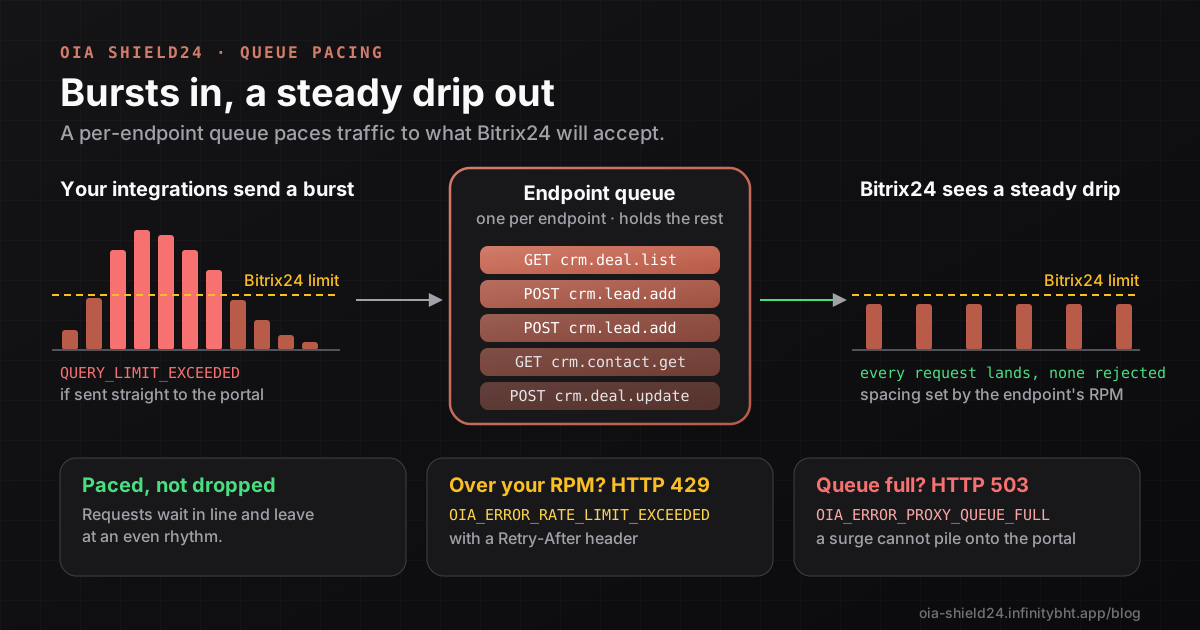
- Set a rate limit and log level. A modest requests-per-minute limit stops a bug in their code from flooding your portal. Metadata-only logging records what happened without storing customer data.
- Send the credential safely and verify. Copy the key or webhook URL from the Endpoint Provisioned dialog and send it through a password manager, not a chat. Ask the vendor to run one real request, then confirm it in Observability.
A minimal call from the vendor's side looks like this, and it is the only change they make to their code:
curl -s -X POST "https://oia-shield24.infinitybht.app/rest/crm.lead.add" \
  -H "Authorization: Bearer $VENDOR_KEY" \
  -H "Content-Type: application/json" \
  -d '{"fields": {"TITLE": "Website enquiry", "NAME": "Jane Doe"}}'
Force the values you care about
Some rules are not about permission but about consistency. If every lead from Acme must be assigned to the same manager, you can force it with Payload Forcing. Choose the target method, the target payload area and a forced JSON payload:
{ "fields": { "ASSIGNED_BY_ID": 42, "SOURCE_ID": "WEB" } }The forced values are merged into every matching request, overriding what the vendor sent. Because Bitrix24 also accepts changes through GET query strings, an endpoint with forced values refuses GET requests with OIA_, so a vendor cannot bypass your override.
Offboarding in one click
The same discipline applies when the work ends.
- Let the expiry do the work. If you set a contract date, the key stops on that day with no action from you.
- Disable or revoke early when needed. On the endpoint's row you can switch it off temporarily or choose Revoke and confirm Revoke Access. Only that vendor is affected.
- Review the log. Check Observability for the vendor's last activity so you know what they did in the final days.
- Rotate on a schedule. For long-running vendors, issue a new endpoint each year and retire the old one.
What this does not replace
Scoped endpoints reduce what a vendor can do and make their behaviour visible. They do not replace a contract, and they cannot judge whether a permitted call is sensible. Keep data-protection agreements in place, review what each Bitrix24 user can access, and read the privacy policy so you know what OIA Shield24 itself stores.
Frequently asked questions
Can a vendor see my real Bitrix24 credentials?
No. The vendor holds an OIA Shield24 key. The Bitrix24 tokens behind it are stored encrypted and are never sent to the vendor, and any token fields in Bitrix24 responses are stripped.
What if the vendor needs a method I did not allow?
They get an OIA_ response and nothing reaches Bitrix24. You decide whether to widen the endpoint, and the change takes effect immediately.
Can I give several vendors access at the same time?
Yes, and you should create one endpoint per vendor. Each has its own key, limits, expiry and log trail, and revoking one never affects the others. The number of endpoints you can create depends on your plan.
Does this work for tools like Zapier or Make?
Yes. Use Webhook mode and the vendor type External Platform. The tool calls a URL, and the same method, rate and IP rules apply.
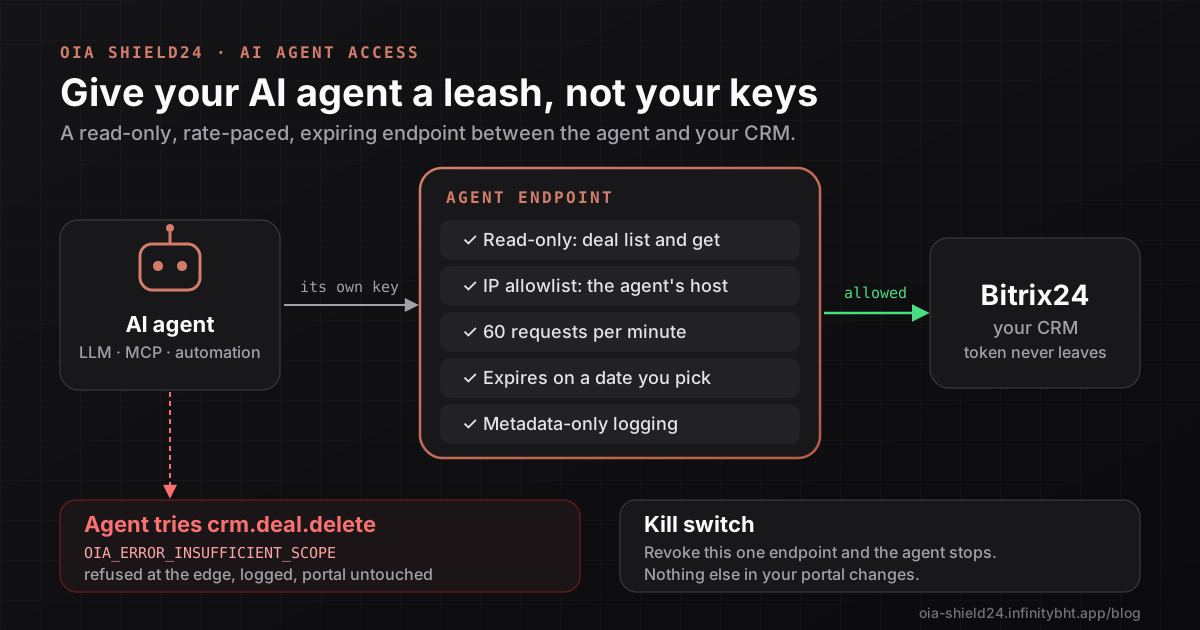
For the technical side of what each check does, see how to protect and monitor the Bitrix24 REST API. If the next integration is an AI agent, read how to connect an AI agent to Bitrix24 safely.
Give your next vendor an endpoint, not the keys
Install OIA Shield24, create a scoped endpoint for the vendor you are onboarding this week, and revoke it the day the contract ends. The Free plan costs nothing.