
If you have built anything serious on the Bitrix24 REST API, you have met QUERY_. A sync job works for weeks, then a bulk import, a busy morning or a second integration arrives and calls start failing. The usual response is a pile of sleep calls and retry loops that make each integration slower and still miss the next burst.
This guide explains why the error happens, why the common fixes fall short, and how to let a per-endpoint queue absorb bursts so Bitrix24 only receives traffic it will accept.
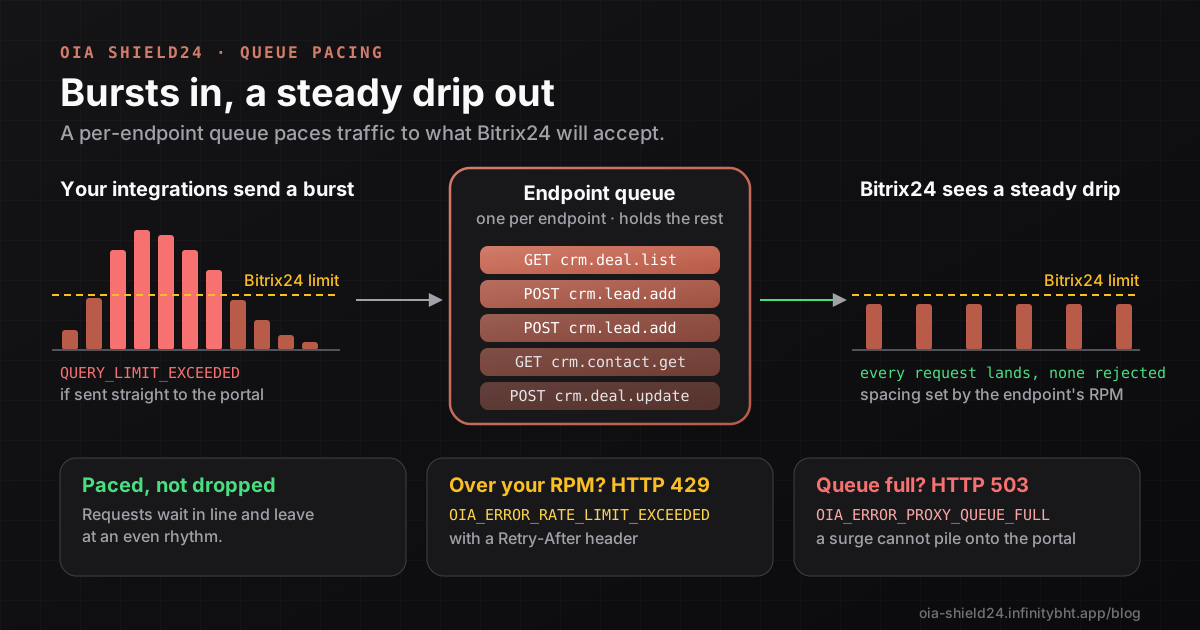
Short answer: Bitrix24 allows only a small, steady number of REST requests per portal, roughly two per second on most plans. Anything faster is rejected with QUERY_LIMIT_EXCEEDED. OIA Shield24 gives each endpoint a queue that releases requests at an even pace set by its requests-per-minute limit, so bursts wait in line instead of failing.
Why QUERY_LIMIT_EXCEEDED happens
Bitrix24 protects its servers with a request-intensity limit per portal. Think of a bucket with a small hole: requests fill it quickly, it drains slowly, and when it overflows Bitrix24 answers with QUERY_ instead of doing the work. The exact allowance depends on your Bitrix24 plan, so check the current figure in the official REST documentation. For most portals the working assumption is about two requests per second.
The limit is shared by everything that calls your portal. One integration may be well behaved, but three of them together, plus your own automation, can overflow the bucket without any of them being at fault. Bursts are the usual trigger:
- A bulk import or nightly sync that fires hundreds of calls at once.
- A webhook that triggers several follow-up calls per event.
- A script that retries immediately on failure, adding even more traffic.
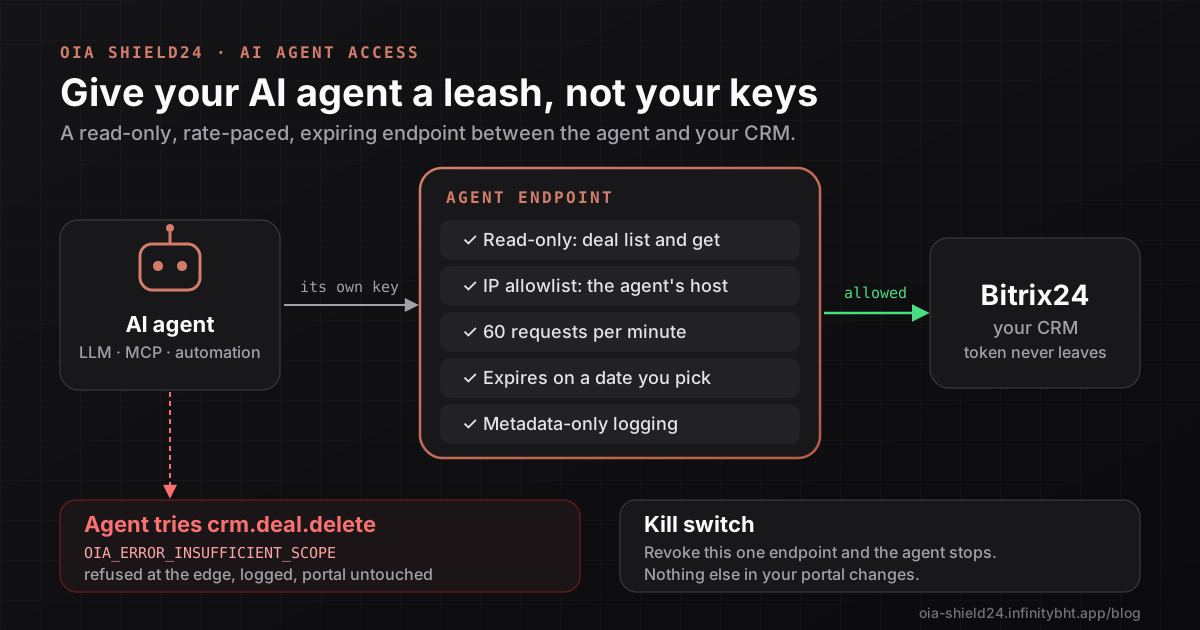
- An AI agent that makes five or six calls in a row to answer one question.
Why the usual fixes fall short
| Approach | What it does | The catch |
|---|---|---|
sleep between calls | Slows one script | Does nothing for the other callers, and wastes time when the portal is idle |
| Retry on error | Eventually succeeds | Retries add load exactly when the portal is busiest |
The batch method | Combines up to 50 commands in one call | Helps a lot, but only for callers you control, and not for events or third-party tools |
| A message queue you build | Smooths everything | Another system to build, host and monitor |
Batching is still worth using. OIA Shield24 inspects every command inside a batch exactly as if it were a direct call, so a batch cannot be used to smuggle in a method the endpoint does not allow.
How the OIA Shield24 queue works
Every endpoint gets its own queue, which lives at the edge and handles one request at a time. Here is what happens to each request:
- It joins the line. If the endpoint's queue is already full, the request is turned away at once with HTTP 503 and
OIA_, so a surge cannot pile onto your portal.ERROR_ PROXY_ QUEUE_ FULL - It waits its turn. The queue releases one request every
60 / RPMseconds. A limit of 60 requests per minute means one request per second, and 120 means one every half second. - Dead requests are dropped. If a caller gives up and closes the connection while waiting, its request is removed and never sent to Bitrix24 (reported as
OIA_).ERROR_ CLIENT_ CLOSED_ REQUEST - It is sent without blocking the next one. A slow Bitrix24 reply does not hold up the rest of the line.
- The answer comes back with the wait time. The response carries an
X-OIA-Queue-Timeheader giving the milliseconds the request spent waiting.
| Endpoint RPM | Spacing between requests |
|---|---|
| 30 | 2 seconds |
| 60 | 1 second |
| 120 | 500 milliseconds |
The endpoint also keeps a rolling one-minute count. If a caller sends more than the endpoint's requests-per-minute value inside that minute, the extra requests are rejected with HTTP 429 and OIA_, with a Retry-After header. The limit you can set depends on your plan.
Pacing is per endpoint, so budget across them
Each endpoint is paced on its own. Two endpoints each set to 120 requests per minute could together send up to four requests per second. When you issue several endpoints for one portal, choose their limits so the sum stays inside the portal's allowance, and give the busiest integration the largest share.
Step by step: set up pacing
- List your callers. Write down every integration, tool and agent that calls the portal, and estimate how many requests per minute each needs.
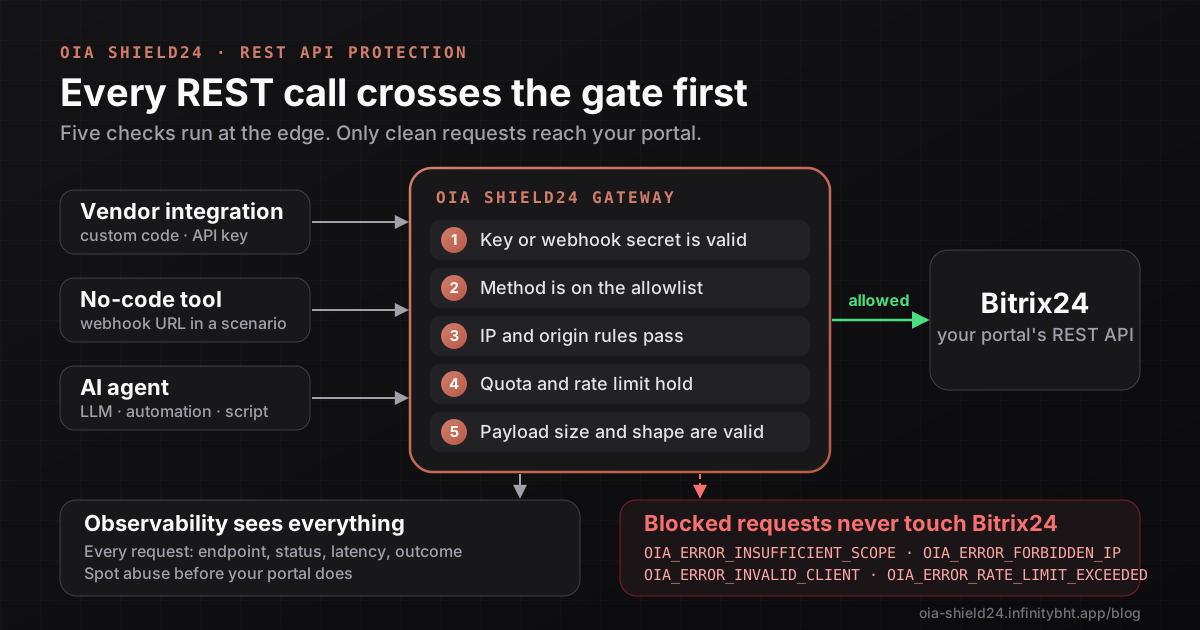
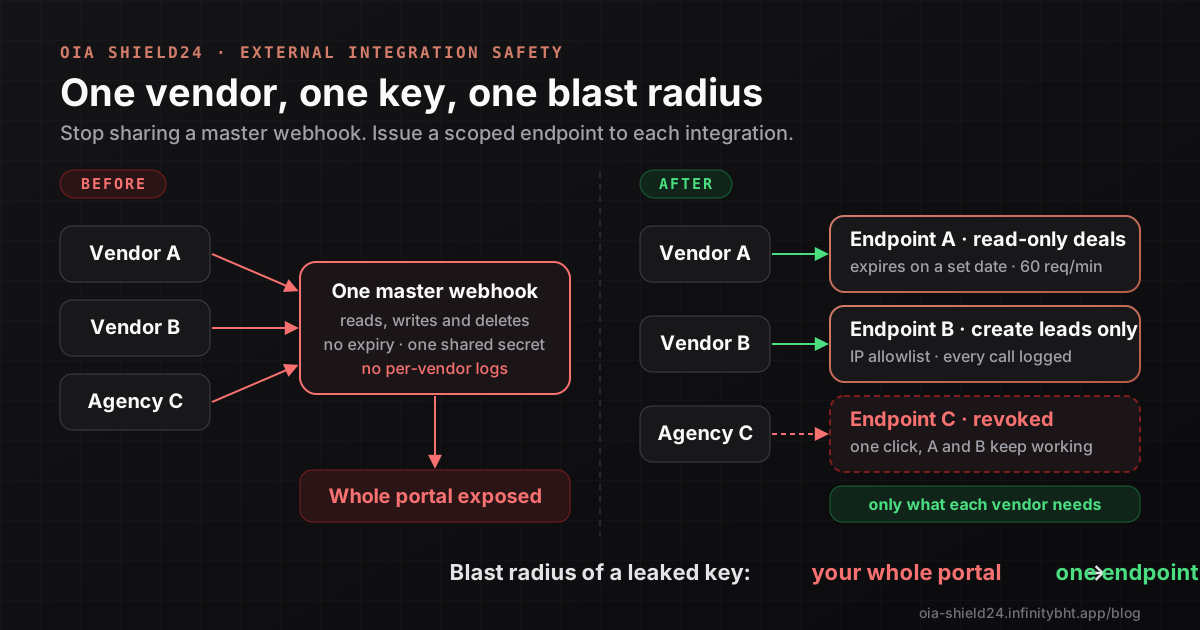
- Create one endpoint per caller. In OIA Shield24 open Access Control and choose New Vendor, as described in how to protect and monitor the Bitrix24 REST API.
- Set the rate limit. Enter a value in the requests-per-minute field. Start low, such as 60, and keep the total across endpoints within your portal's budget.
- Point the caller at the endpoint. Replace the Bitrix24 base URL with the OIA Shield24 URL and send the new key. Nothing else in the integration changes.
- Test with a burst. Fire ten requests at once and read the queue time on each reply:
for i in $(seq 1 10); do
  curl -s -o /dev/null -D - -X POST "https://oia-shield24.infinitybht.app/rest/crm.deal.list" \
    -H "Authorization: Bearer $SHIELD24_ENDPOINT_KEY" \
    -H "Content-Type: application/json" \
    -d '{"select": ["ID"]}' | grep -i "x-oia-queue-time" &
done
wait
Use a limit of 60 requests per minute for this test, or the highest your plan allows. At 60 the ten values should climb in roughly one-second steps, which shows the burst being spread out. All ten succeed and none of them reaches Bitrix24 faster than the pace you set.
Make your own code a good citizen
The queue protects the portal, but your code should still handle the two refusals gracefully. Honour Retry-After when it is present and back off when the queue is full:
async function callShield24(method, body, attempt = 0) {
  const res = await fetch(`https://oia-shield24.infinitybht.app/rest/${method}`, {
    method: 'POST',
    headers: {
      Authorization: `Bearer ${process.env.SHIELD24_ENDPOINT_KEY}`,
      'Content-Type': 'application/json',
    },
    body: JSON.stringify(body),
  });
  if ((res.status === 429 || res.status === 503) && attempt < 5) {
    const waitSeconds = Number(res.headers.get('Retry-After')) || 2 ** attempt;
    await new Promise((resolve) => setTimeout(resolve, waitSeconds * 1000));
    return callShield24(method, body, attempt + 1);
  }
  return res.json();
}
Set a generous client timeout. A request that waits in the queue is slower than one that does not, by design, and a timeout shorter than the queue wait just turns pacing back into failures.
Which error is which
| Error | Who raises it | Meaning |
|---|---|---|
QUERY_ | Bitrix24 | The portal itself is overloaded; what pacing is meant to prevent |
OIA_ (429) | OIA Shield24 | This endpoint sent more than its requests-per-minute limit |
OIA_ (503) | OIA Shield24 | Too many requests are already waiting for this endpoint |
OIA_ | OIA Shield24 | The caller disconnected while waiting, so the request was dropped |
Frequently asked questions
Does the queue lose requests?
It does not drop a request that is waiting unless the caller disconnects. A request is only refused when the endpoint's queue is full or its per-minute limit is exceeded, and the refusal is explicit, so your code can retry.
Does pacing make my integration slower?
Individual calls can wait in line, but only as long as needed to keep Bitrix24 under its limit. That is usually faster overall than a failed call plus a retry, and the portal stays responsive for your users.
Should I still use batch requests?
Yes. Batching reduces the number of requests, and the queue spreads out whatever remains. Both help.
Can I see how long requests waited?
Yes. Every proxied response includes the X-OIA-Queue-Time header, and Observability shows latency per endpoint so you can spot an endpoint whose limit is too low.
Rate limits are one part of a safe integration. For access control, read how to onboard external integrations safely, and for a case where pacing matters a great deal, see how to connect an AI agent to Bitrix24 safely.
Stop babysitting Bitrix24 rate limits
Install OIA Shield24, set a requests-per-minute value on each endpoint, and let the queue pace your integrations instead of writing retry loops. The Free plan costs nothing.